Your account is where you see how your website is doing, read its enquiries, get your social posts and ask us for changes. It’s at my.brandnewdesign.co.uk. This guide gets it onto your phone, with a notification for every new enquiry.
Signing in
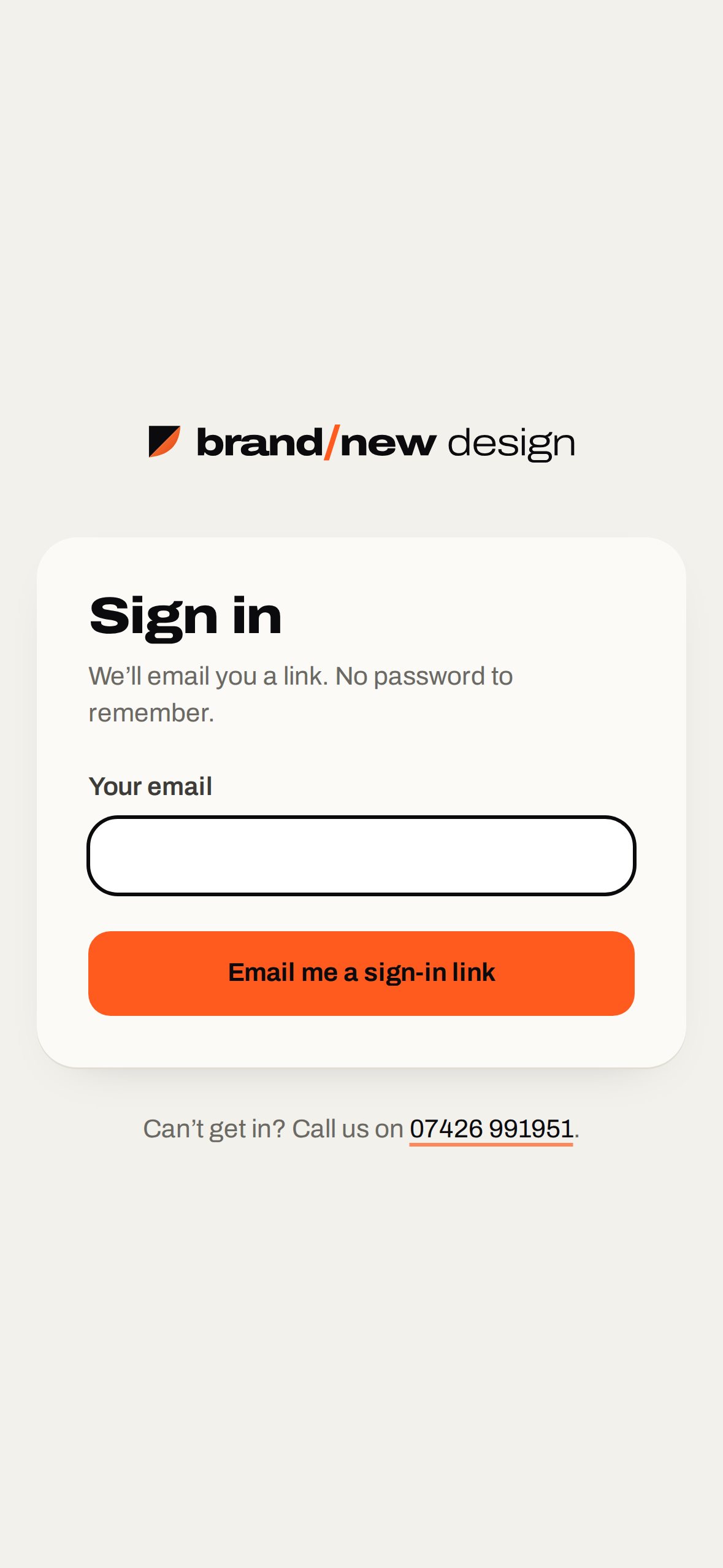
There’s no password to remember. We email you a link instead.
-
The first time
We send you an email called “Finish registration”. Press its button, check your name, agree to the terms, and you’re in. The link works for seven days.
-
After that
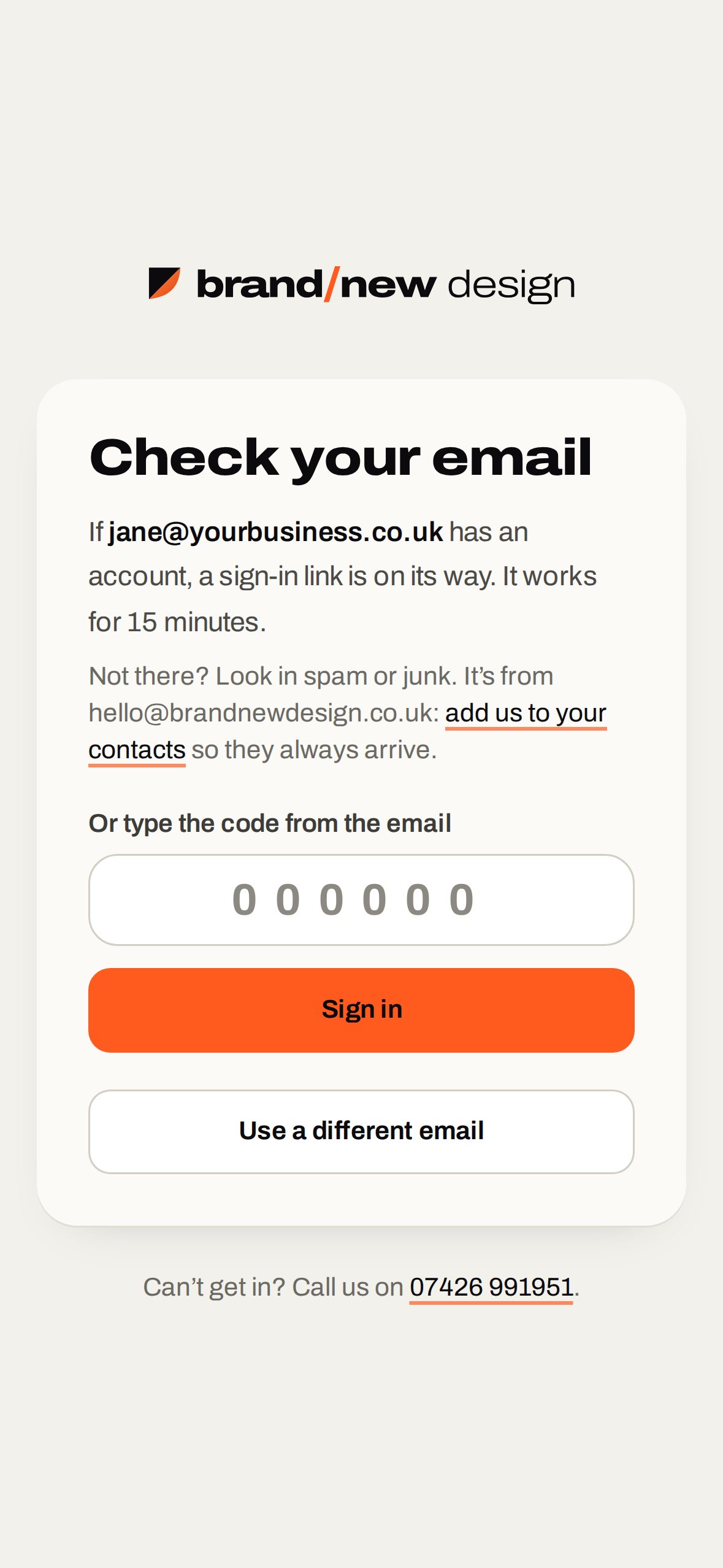
Go to my.brandnewdesign.co.uk, type your email and press “Email me a sign-in link”. Press the button in the email we send. It works once, for 15 minutes.
-
Or type the code
The same email has a six-digit code. Type it on the sign-in page instead of pressing the button. This is the way to sign in to the app on your home screen (see below).
Once you’re in, you stay signed in on that phone or computer until you sign out.
Make sure our emails reach you
Your sign-in links and your website’s enquiries are emailed from hello@brandnewdesign.co.uk. If your email puts them in spam or junk, you could miss a customer. Two minutes now stops that.
- Add us to your contacts. Save
hello@brandnewdesign.co.ukas a contact called Brand New Design. Gmail, Outlook and Apple Mail all trust the people in your contacts. - Gmail: if one of our emails is in Spam, open it and choose Report not spam. To add us as a contact, go to
contacts.google.com, choose Create contact, and save our address. - Outlook and Hotmail: go to Settings, Mail, Junk email, then Safe senders and domains. Choose Add safe sender, type our address, and Save.
- iPhone Mail: if one of ours is in Junk, open it and choose Move to Inbox or Not Junk. Tap our name at the top of the email and choose Create New Contact.
Enquiries come from us, but pressing Reply answers your customer directly: their email is already filled in. Your form asks for an email but doesn’t insist, so if someone only left a phone number, the email says so: ring or text them instead.
Put it on your home screen
Added to your home screen, your account opens like an app, with its own icon named after your business. On an iPhone this is also the only way to get notifications.
On an iPhone
Open it in Safari
Go to my.brandnewdesign.co.uk in Safari and sign in.
Tap ⋯, then Share
The ⋯ button is next to the address at the bottom. If your Safari has its address bar at the top, tap the Share button (a square with an arrow) instead.
Tap Add to Home Screen
Scroll down the list to find it. Not there? Tap Edit Actions at the bottom of the list and add it.
Leave “Open as Web App” on, and tap Add
You can change the name first if you like.
On iPhones before iOS 26, tap the Share button at the bottom of Safari, then Add to Home Screen and Add.
The app on your home screen keeps its own sign-in, apart from Safari. Open it, ask for a sign-in email, and type the code from it.
On an Android phone
Open it in Chrome
Go to my.brandnewdesign.co.uk in Chrome and sign in.
Tap ⋮, then Add to Home screen
The ⋮ menu is at the top right. Some phones call it Install app. Chrome may also offer it in a bar at the bottom of the page.
Tap Install
The icon goes on your home screen and in your apps. It stays signed in, as Chrome is.
Turn on notifications
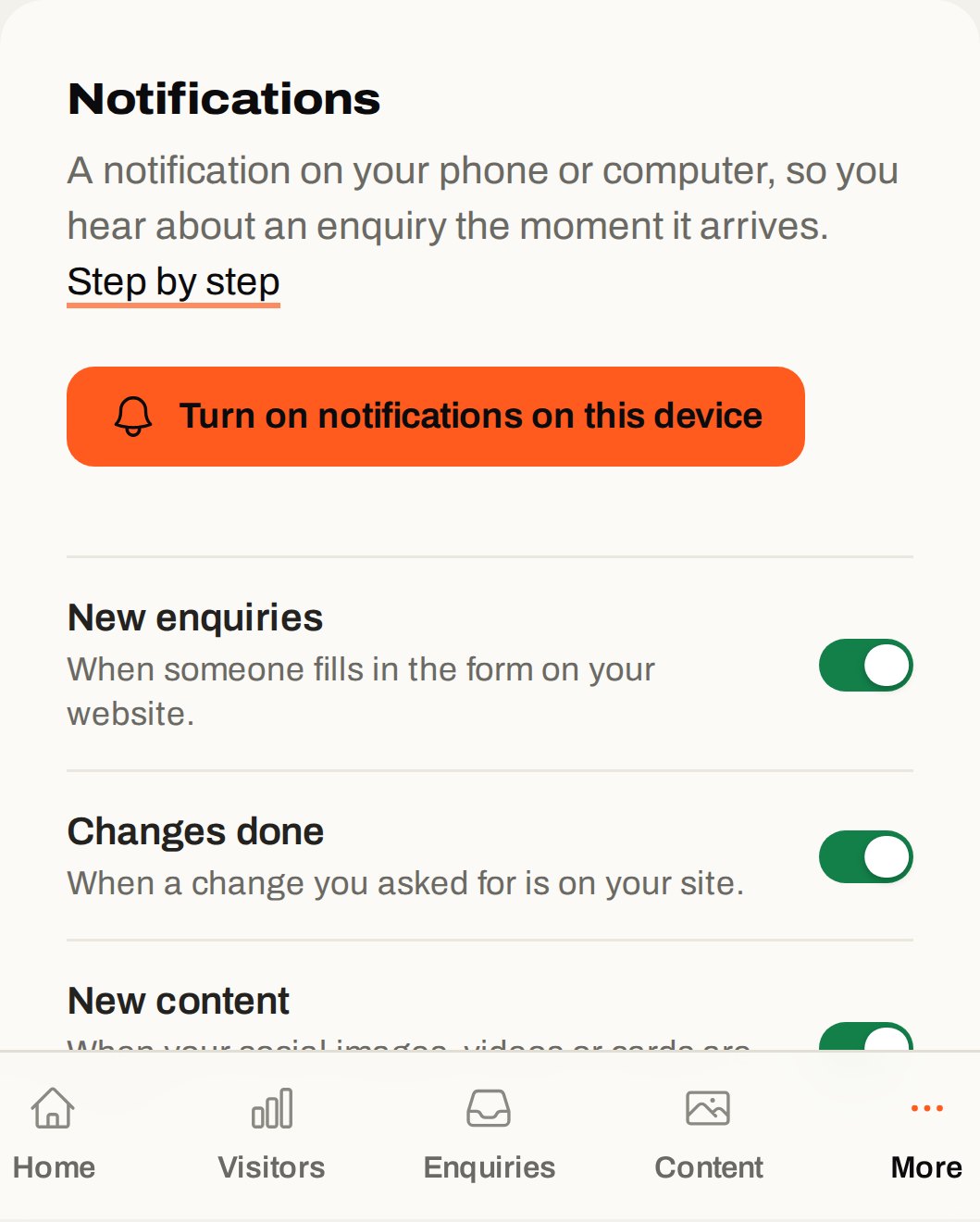
Your phone can tell you the moment someone sends an enquiry through your website, when a change you asked for is done, and when new content is ready. You choose which.
On an iPhone
Open the app from your home screen
Not Safari: iPhones only send notifications to the app. Sign in with the code from our email if it asks.
Tap Turn on
It’s on your Home page. Or go to More, Account, and tap Turn on notifications on this device.
Tap Allow
Then tap Send me a test in Account to see one arrive.
On an Android phone
Open your account
From its icon on your home screen, or in Chrome.
Tap Turn on
On your Home page, or in Account.
Tap Allow
Then tap Send me a test in Account.
On a computer
In Chrome, Edge, Firefox or Safari, open your account, go to Account, tap Turn on notifications on this device and allow them. Each phone and computer is turned on by itself.
Choose what you hear about
In Account, under Notifications, switch each kind on or off: new enquiries, changes done, and new content. It’s for every phone and computer you’ve turned on.
Not getting them?
- You tapped “Don’t Allow” on an iPhone. Go to Settings, Notifications, find your business’s name and turn Allow Notifications on. If it isn’t listed, delete the icon from your home screen and add it again.
- You blocked them on Android. Press and hold the icon, tap App info, then Notifications, and turn them on.
- Focus or Do Not Disturb holds notifications back while it’s on. Add your account to its allowed apps if you want enquiries to come through.
- Android battery saving can delay them. In App info, set its battery use to Unrestricted.
A notification shows the customer’s name and the start of their message. It’s encrypted for your phone on its way, so the services that deliver it (Apple’s, Google’s) can’t read it.
Around your account
On a phone, the pages are along the bottom: Home, Visitors, Enquiries, Content, and More for the rest. On a computer they’re down the left.
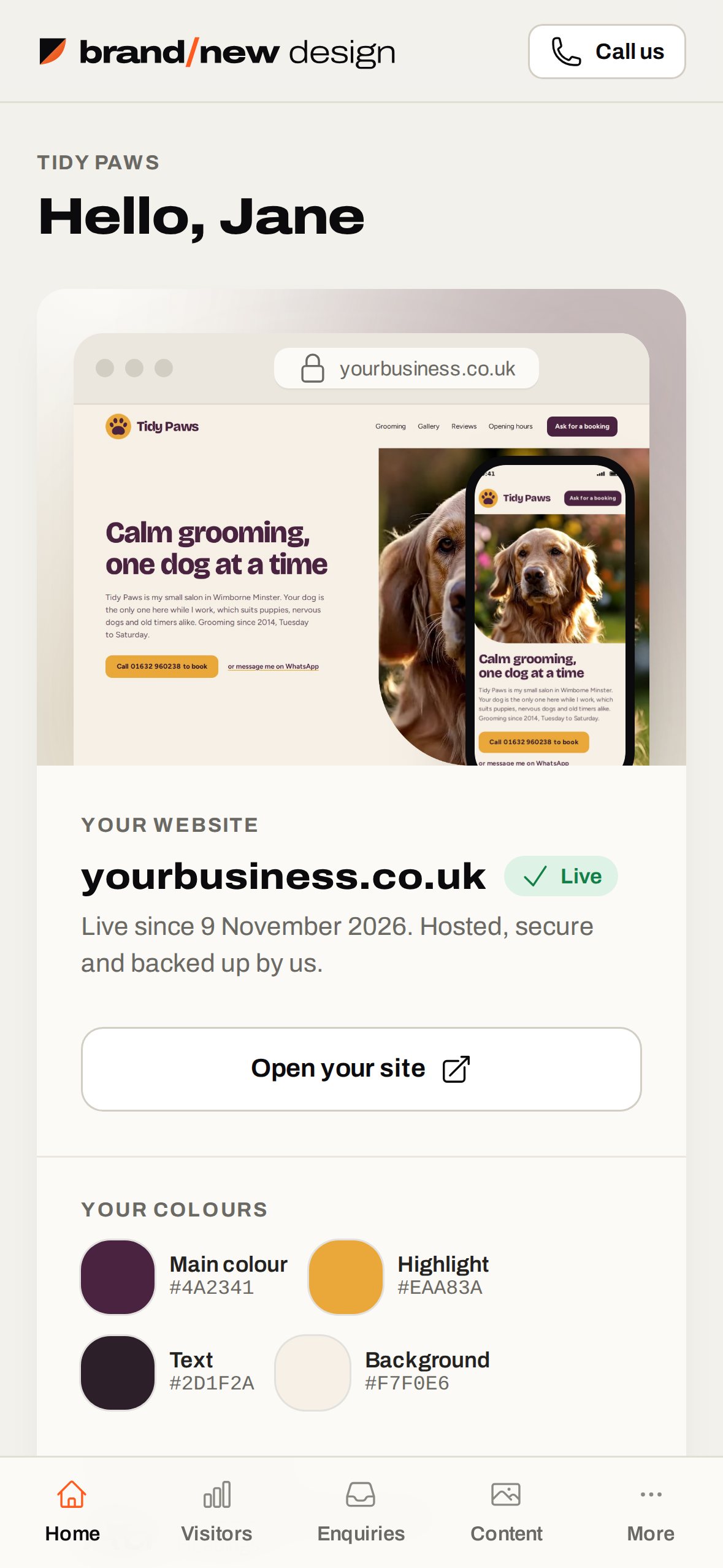
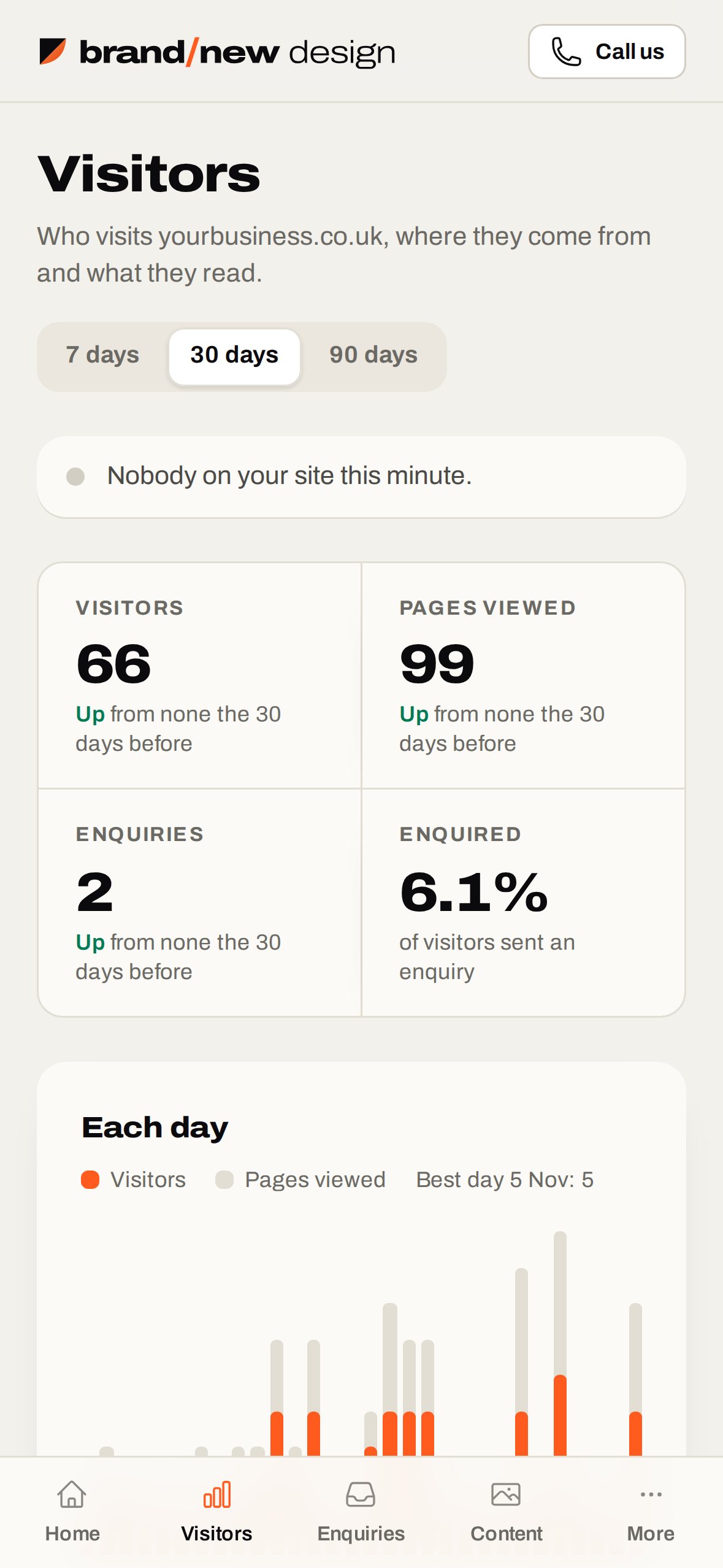
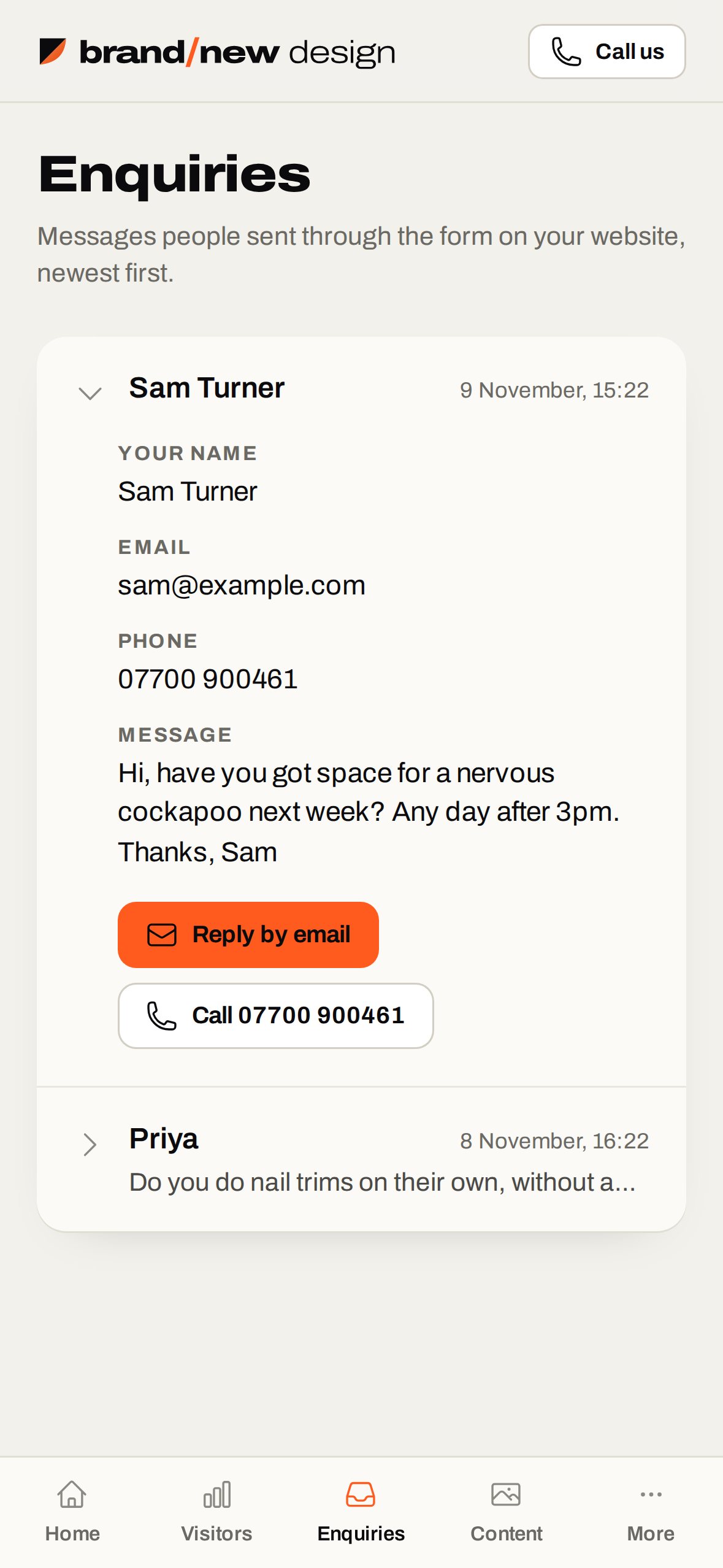
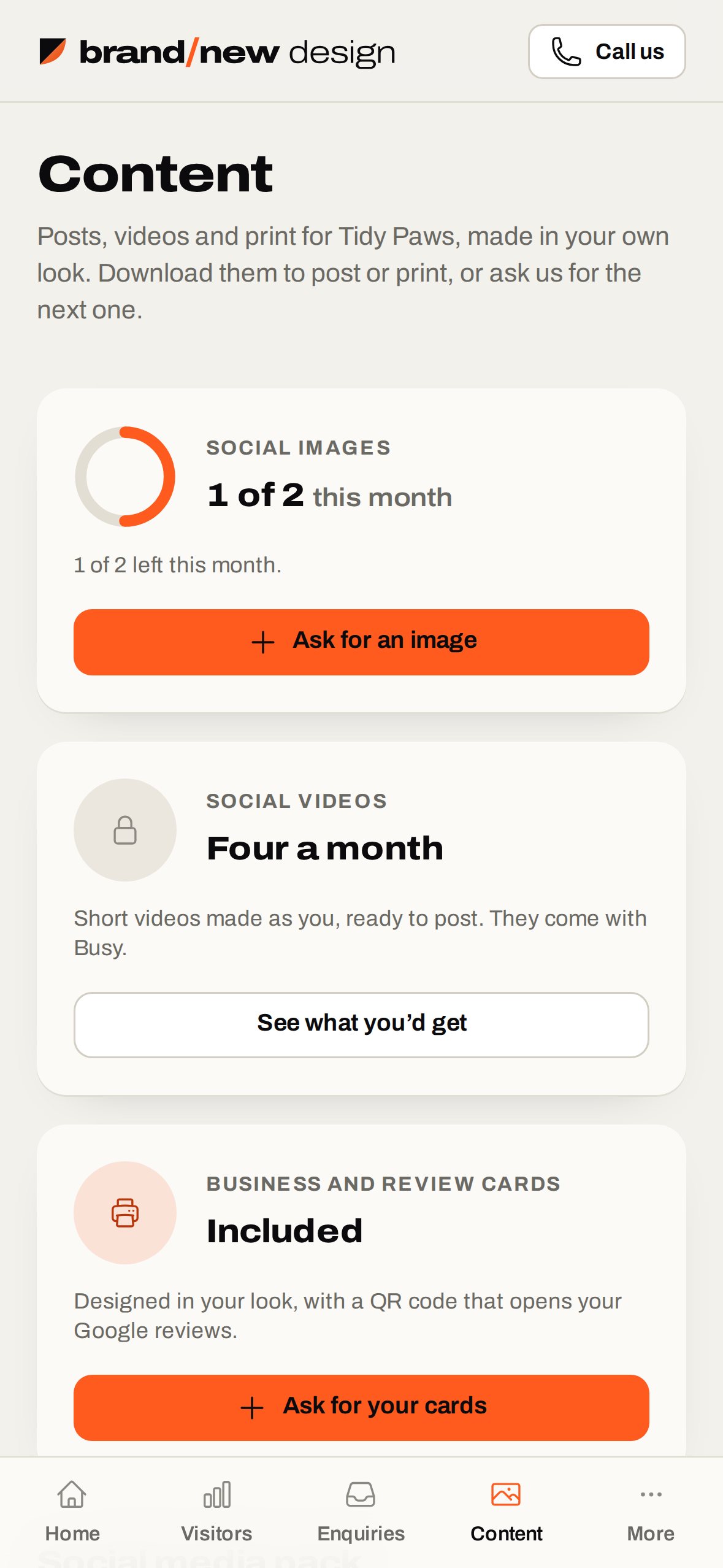
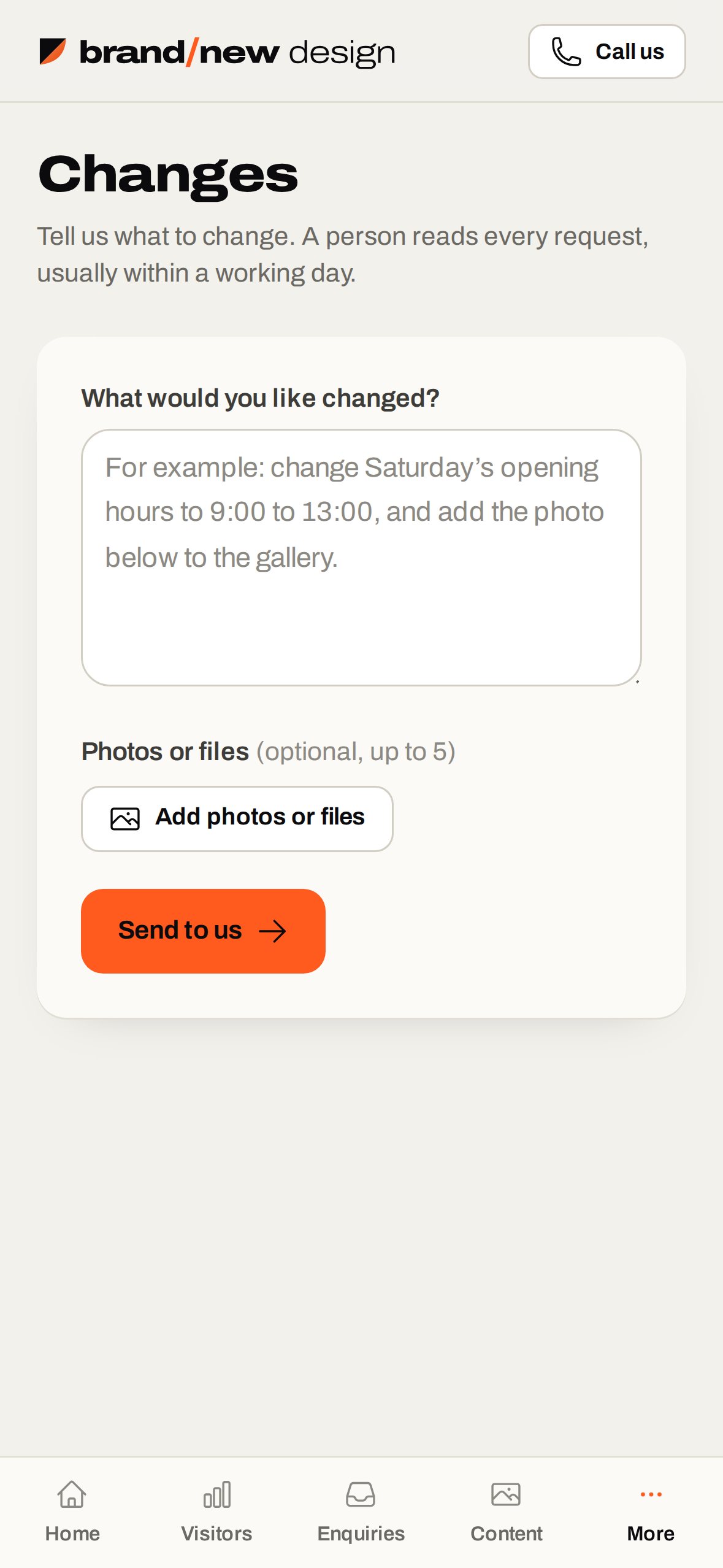
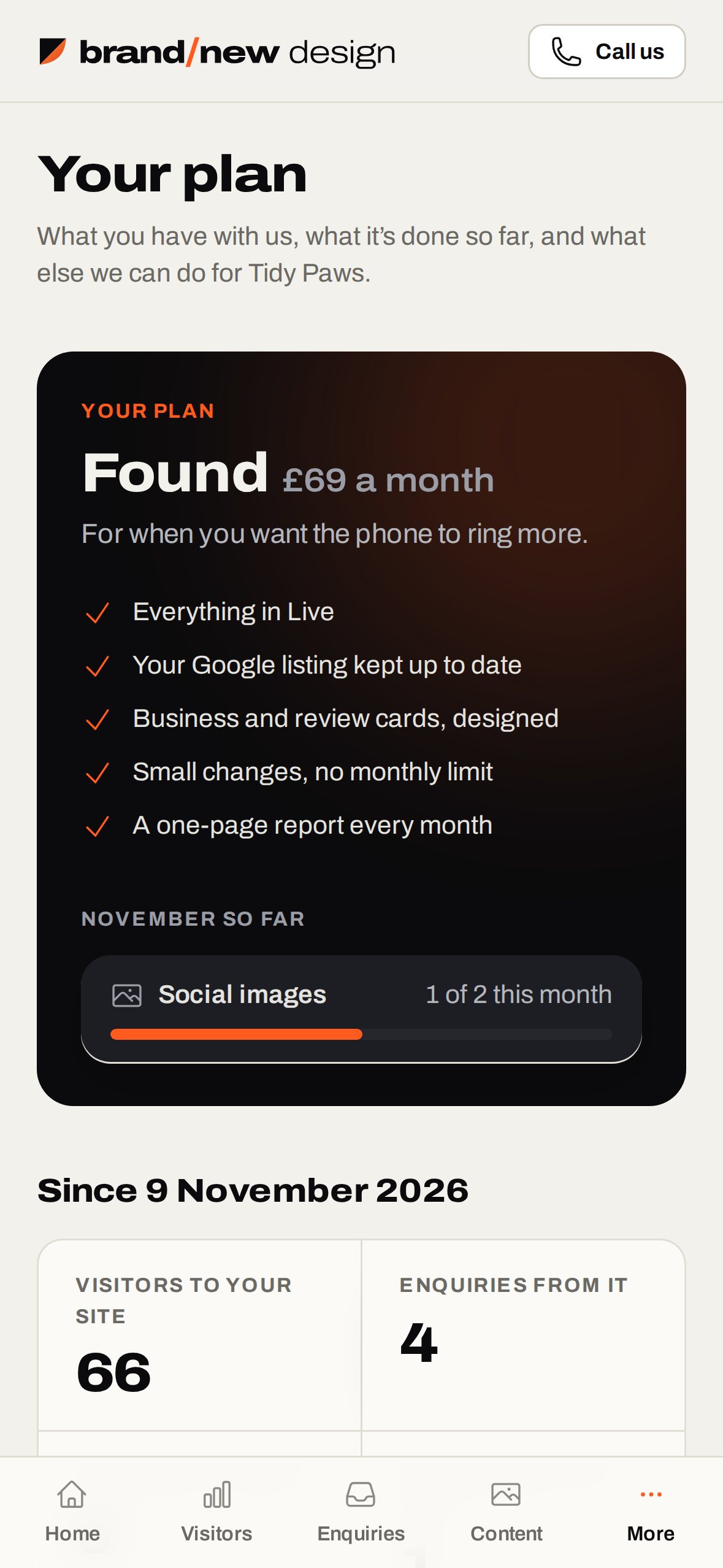
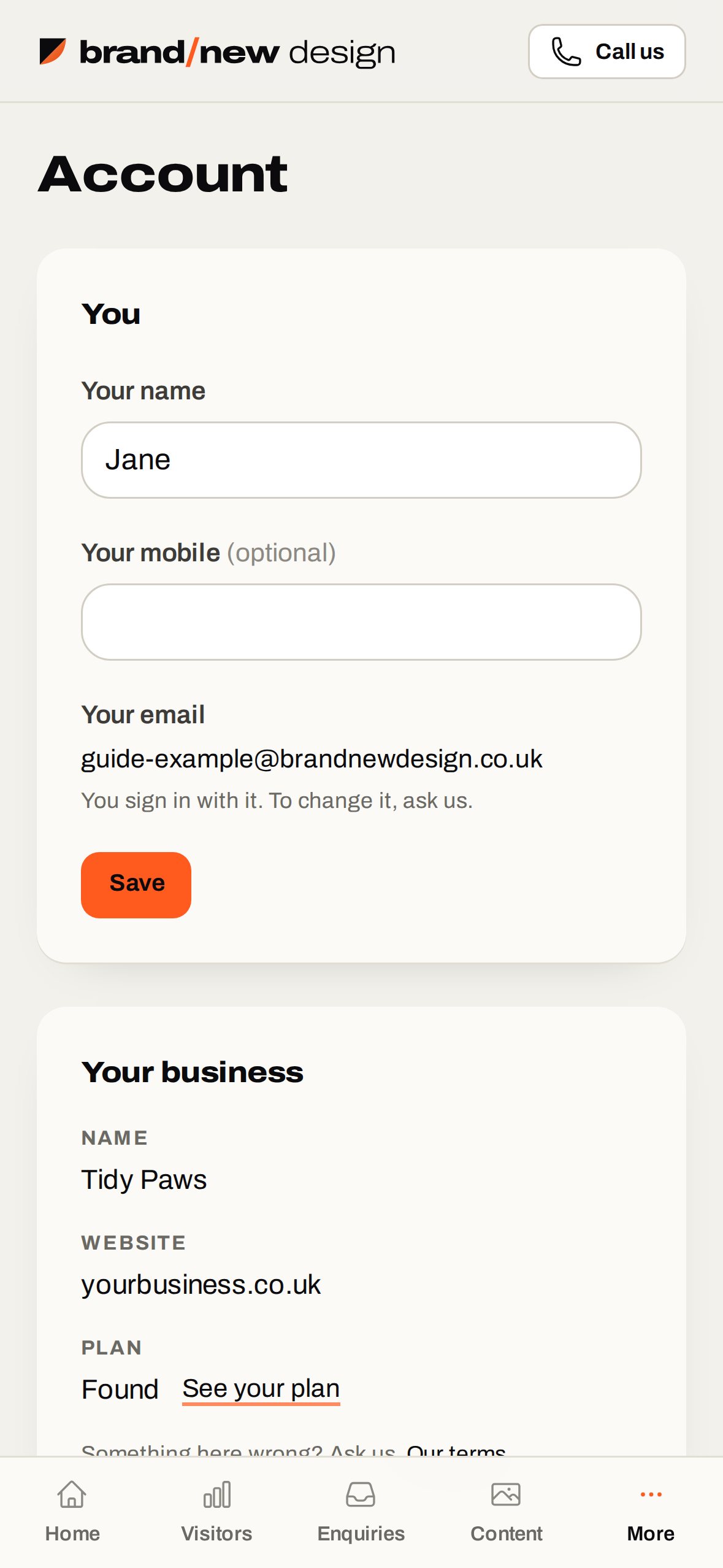
Pictures show Tidy Paws, an example business.
Getting help
A person reads everything you send us. Call us on 07426 991951, or email hello@brandnewdesign.co.uk. You can also tap Call us at the top of your account on a phone.